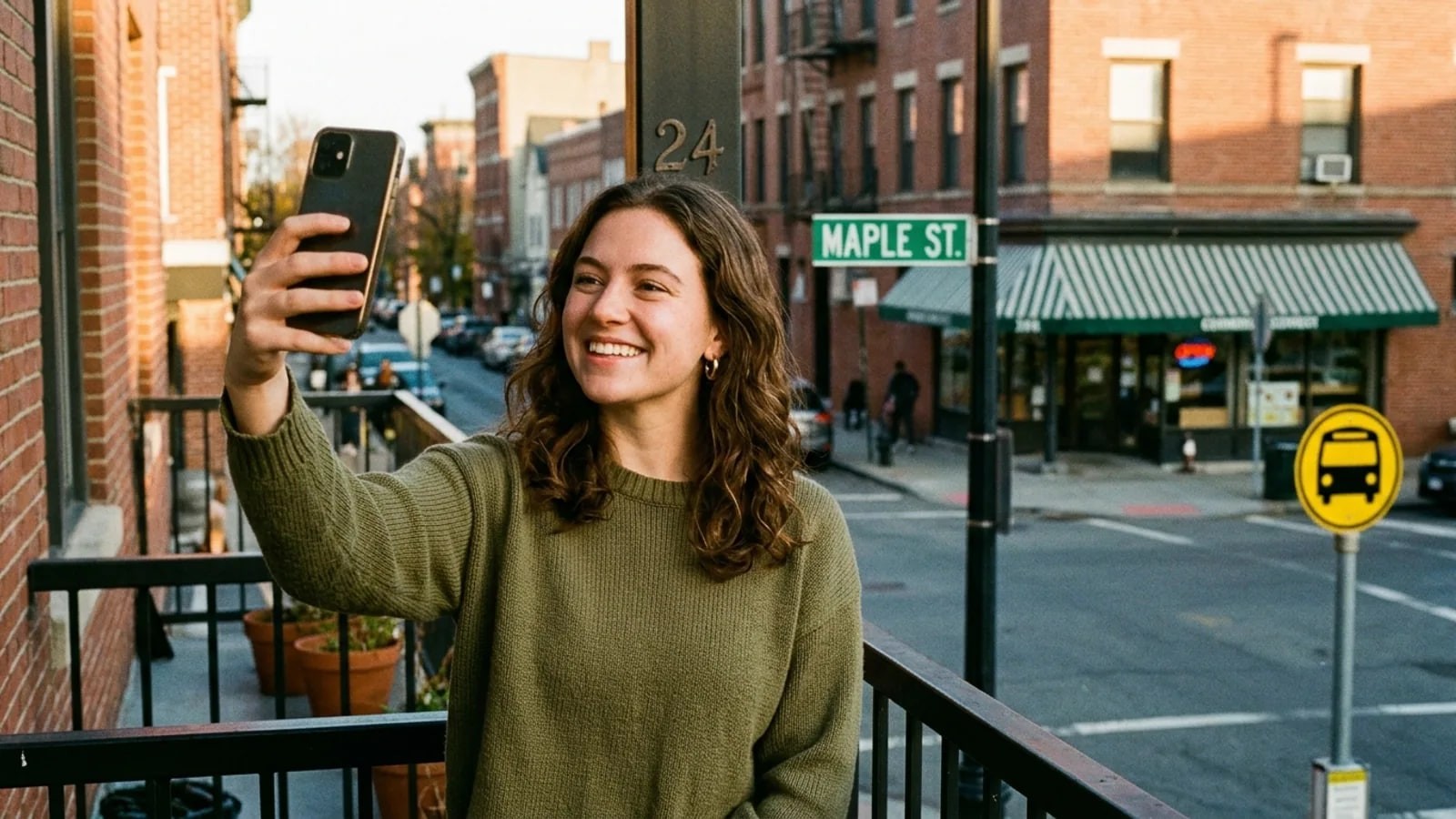
One photo has three layers a stranger can read, the hidden file data, the background and your face. What each one gives away, and how to clean up new and old posts.
- What can someone find from a photo of you?
- More than most people expect. A photo file can carry hidden data like GPS coordinates, the phone model and the exact time it was taken. The background can show a street sign, a school logo or a house number. Your face can lead to other public photos of you. You can cut most of it before posting.
What someone can find from a photo depends on three layers: the data hidden in the file, whatever made it into the frame, and the face itself. Below is what each layer gives away, then a checklist for new posts and a way to clean up old ones.
What hidden data does a photo file carry?
Every phone photo is saved with extra text called EXIF data (Exchangeable Image File Format). It records the phone model, the date and time to the second and, if allowed, the GPS position where you stood.
Apple's personal safety guide says the iPhone Camera records where a photo was taken only when it has access to Location Services, and that people you share with may be able to see it. On Android, Google's Pixel Camera help calls the setting Save location.
So a selfie taken at home, with location on, can carry your home's coordinates for anyone holding the original file.
How to stop new photos recording location
- iPhone: Settings, then Privacy & Security, then Location Services, then Camera, and choose Never.
- Pixel: open the Camera app, tap Settings in the lower-left corner, then More settings, and switch off Save location.
- Other Android phones: the switch is usually in the camera app's settings, but names vary by brand. Check your camera app.
These switches only affect new photos. Photos already in your gallery keep their location.
Which apps strip photo metadata, and which keep it?
For photo metadata privacy, the good news is that big social apps hide EXIF data from people viewing your public posts. Sending the original file is different, and it often keeps everything.
The table draws on a Consumer Reports investigation from 2019, a 2020 test by Amnesty's Citizen Evidence Lab and the platforms' own help pages. Apps change, so check yours.
| How you share the photo | EXIF location and camera data |
|---|---|
| Public post on Instagram, Facebook or X | Hidden from viewers, per Consumer Reports. The platform itself may still read it. |
| WhatsApp, sent as a normal photo | Most metadata stripped, per Citizen Evidence Lab |
| WhatsApp, sent as a document | Kept, per Citizen Evidence Lab |
| iPhone share sheet with Location turned off | Location not included, per Apple |
| Google Photos link | No location by default, per Google |
| Email attachment, or a text with the original file | Typically kept, per Consumer Reports |
| Flickr | Kept by default, per Consumer Reports |
| Cloud drive file links | Check your app |
On iPhone, you can drop location for one share: in Photos, tap Share, then Options at the top, and turn off Location. Apple says "Location Not Included" then shows above the Options button. Google's sharing page says Google Photos links leave location out unless you opt in.
Common misconceptions
"The app stripped it, so I'm safe." The public copy may be clean. The original still sits on your phone, in your backup and in any chat where you sent it as a file.
"No GPS means no location." Google's Photos help page warns that people "can guess the location based on landmarks in your photo." That is the second layer.
What can someone find from the background of a photo?
Open-source investigators locate places from what is in the frame. Bellingcat's beginner's guide to geolocating videos shows the method: spot a landmark, note the road layout and skyline, then match them against satellite maps until one spot fits.
The same method works on a selfie. Things that give a place away:
- Street signs, house and flat numbers, a shop or café name
- School logos, crests and uniforms
- Car number plates
- Landmarks, a distinctive bridge or mural
- Reflections in windows, mirrors and sunglasses
- Papers on a desk: letters, ID cards, boarding passes, delivery labels
- The view from your window, the same in every photo you take there
Time matters too. Bellingcat's Shadow Finder tool uses an object's height, its shadow and the photo's date and time to narrow down where on Earth it was taken. That timestamp is exactly what EXIF stores.
A worked example
Sam posts a balcony selfie with location off, so the file holds no GPS. Behind Sam, a street sign is readable, the building number is painted on the wall, and a café with a striped awning sits across the road.
A stranger searches the café name, finds the branch on that street, and the building number does the rest. A tighter crop would have shown only Sam and the sky.
What can a face search find from your photo?
A face search engine compares the face in one photo with faces on publicly accessible web pages. From a single selfie it can surface other public photos of the same face: an old team page, a conference gallery, a tagged wedding album. Those pages may carry a name, an employer or a town.
It has limits. It only sees pages that load without a login, so private accounts and chats are out. Look-alikes come up, and a match is a lead, not proof of who someone is.
FaceSearch works on that line. It strips metadata from every upload before the search runs, as described on privacy by design, returns pages rather than names, and never tells you who someone is. Use it on your own face, or to check someone you're already dealing with, never to track down a stranger. Our responsible use rules set out what is allowed.
What should you check before you post a photo?
- Location. Turn it off in the share options, or for the camera altogether.
- Background. Zoom in on signs, numbers, plates and logos. Crop or blur them.
- Reflections. Check windows, mirrors and sunglasses.
- Paperwork. Move letters, badges and tickets out of the frame.
- Timing. Post holiday photos after you're home.
- How you send it. To share full quality with one person, strip the location first instead of sending the original as a document.
- Audience. Ask whether the photo needs to be public at all.
How do you clean up photos you already posted?
Start with location. On iPhone, Apple's guide says to open the photo, tap Adjust Info, then Adjust Location, then No Location. Google notes that a location your camera added can't be removed inside Google Photos, so check your gallery app for a remove-location option.
Then reread your public posts. Archive or delete the ones that show your street, your car or your child's school, and remove location tags you added.
For copies you can no longer reach, a digital footprint audit finds the public pages that show your face, and the use cases hub covers what to do next. If a photo sits on someone else's site, our guide on how to remove a photo of yourself from Google explains which request fits.
frequently asked
- Can someone get my location from a photo I sent on WhatsApp?
- Usually not from the file, if you sent it as a normal photo. Citizen Evidence Lab found that WhatsApp strips most metadata that way, but keeps it when the image goes as a document. The background is a separate risk: a street sign or shop name in the frame gives the place away whatever happens to the file.
- Does turning off camera location remove it from old photos?
- No. The camera setting on iPhone and Pixel only stops new photos from recording a location. Photos already saved keep their coordinates until you remove them, for example with Adjust Location and No Location in the iPhone Photos app. Check older photos before you share them as files.
- How can I see what data my own photo carries?
- Open the photo in your gallery and look at its info or details panel. On most phones you'll see the date and time, the camera model and, if one was saved, a small map of the location. If a map appears, that location travels with the original file whenever you send it as a document or attachment.
- photo privacy
- exif
- metadata
- location
- geolocation
- face search
Written by
The FaceSearch Team
Product & Research, FaceSearch
We build FaceSearch, the face search engine that shows where your photos appear on the public web.