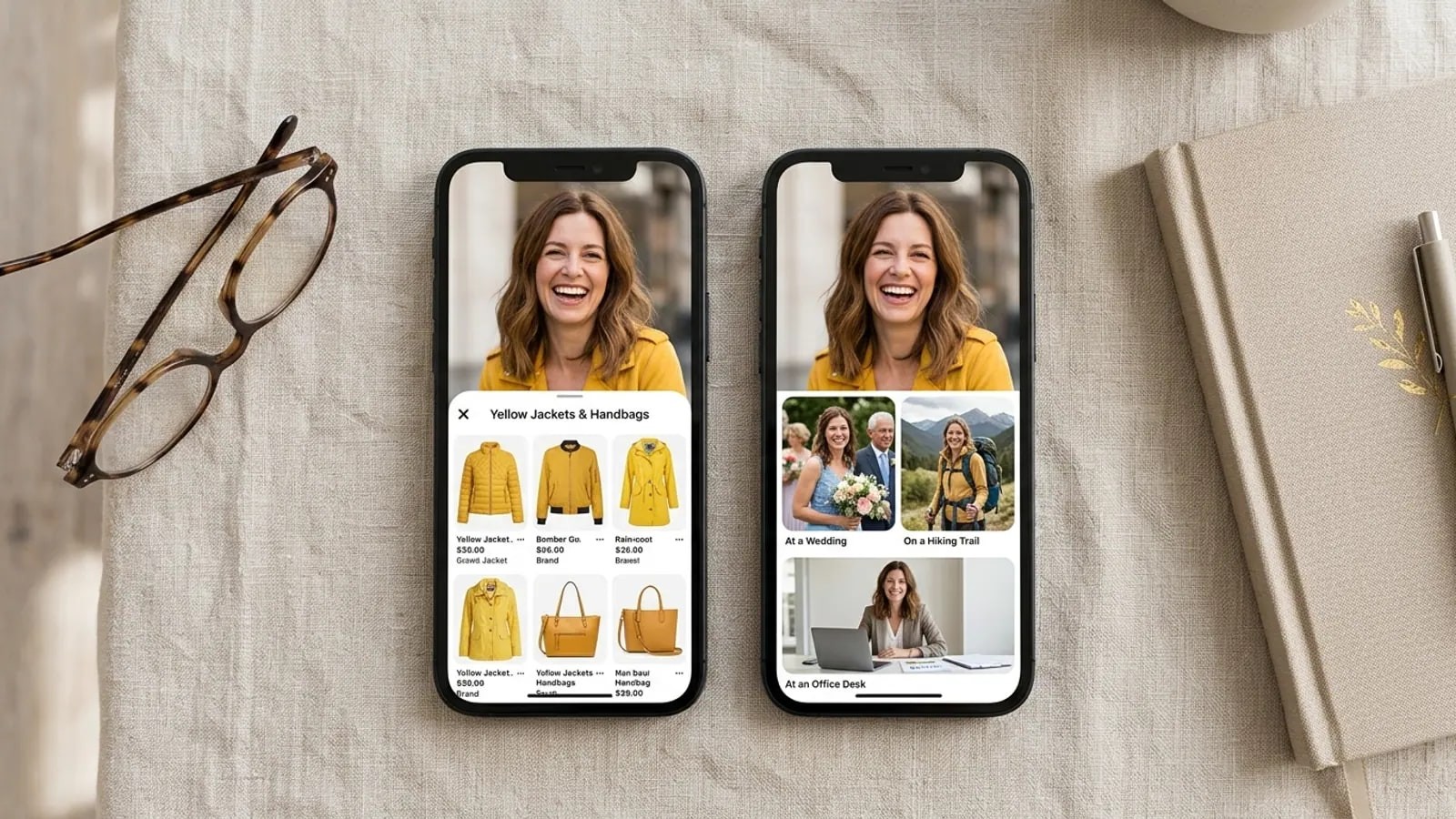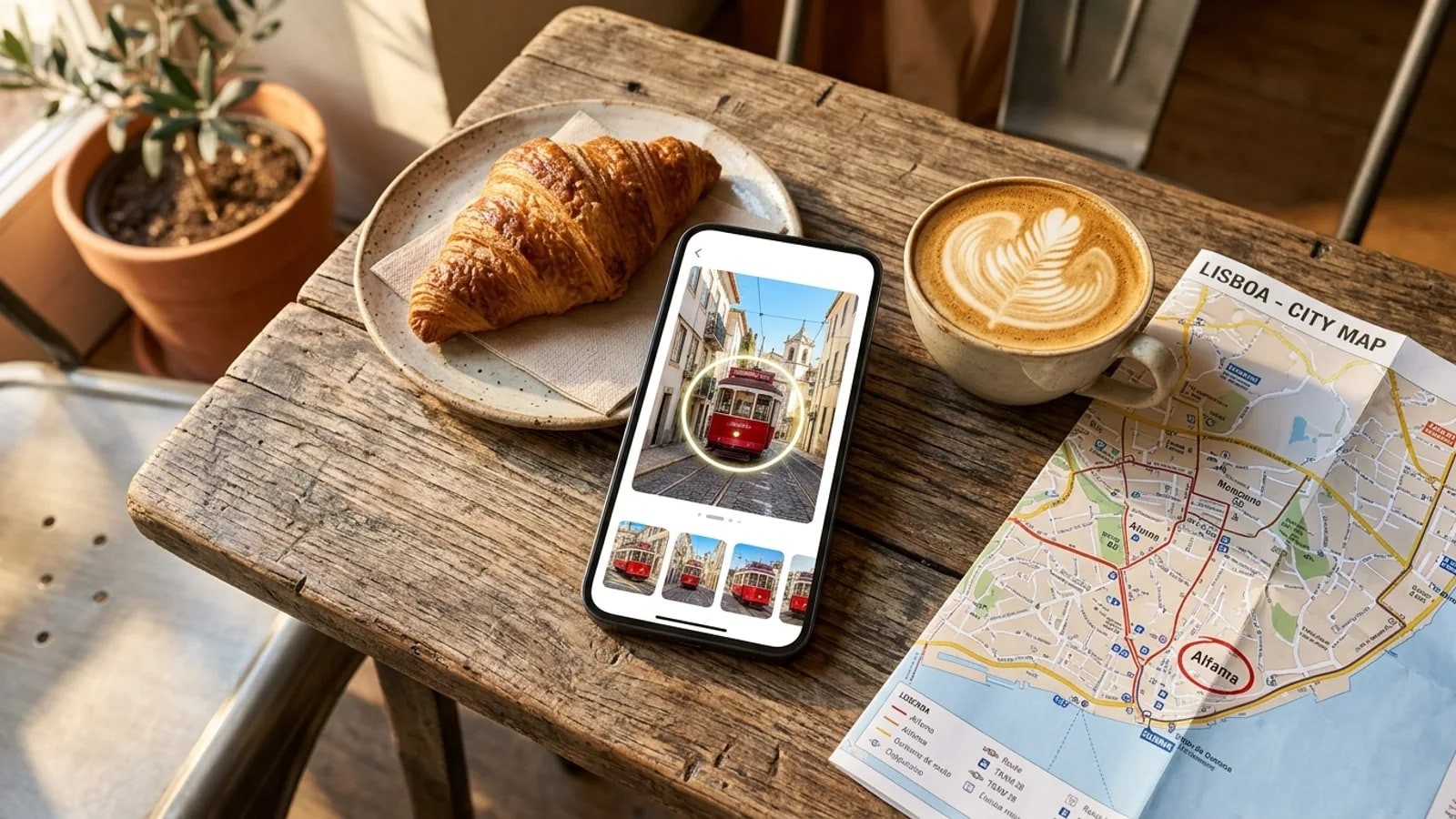
Circle to Search, Google Lens in the Google app, Photos and Chrome, the Samsung gallery and screenshots: every Android route to search with a picture, step by step.
- How do you reverse image search on Android?
- Touch and hold the Home button or navigation handle, then circle the picture to use Circle to Search. If your phone lacks it, open the Google app, tap the Lens icon in the search bar and choose the photo. In Chrome, touch and hold an image and tap Search image with Google Lens.
A reverse image search on Android takes a few taps, and most phones offer more than one way. The right one depends on where the picture is: on a web page, in your gallery or inside an app that won't let you save it. A face is a different question, so it gets its own section.
The steps follow Google's and Samsung's help pages, such as Google Search Help, as of November 2026. Phones vary by brand and software version, so if a label reads slightly differently, pick the closest match.
How do you use Circle to Search on Android?
Circle to Search lets you search anything on screen without leaving the app. Google's Android Help page says it works on select Android phones, including the Pixel 6 and later. Samsung documents it for Galaxy phones.
- Open the picture anywhere: a web page, a chat, a social app or your gallery.
- Touch and hold the Home button (three-button navigation) or the navigation handle at the bottom of the screen (gesture navigation).
- Circle, highlight, scribble over or tap the part you want to search. Drag the edges of the selection to adjust it.
- Swipe up on the results panel to see matching pages and similar images.
On a Samsung Galaxy, check the setting first. Samsung's support page, updated 1 September 2026, gives the path as Settings > Display > Navigation bar, then turn Circle to Search on.
On Xiaomi, Redmi, Vivo, Oppo and other brands popular in India, support depends on the model and its software. Google's Android article says only "selected" phone models have it. The quickest test is to hold the Home button or handle: if a search overlay doesn't appear, use Google Lens instead.
How do you use Google Lens for a reverse image search on Android?
Google Lens is the engine behind most Android image searches, and it's free. Open it from the Google app, Google Photos or Chrome.
In the Google app
- Open the Google app.
- Tap the Google Lens icon (the camera) in the search bar.
- To use a photo you already have, choose it from the images shown, which include your screenshots. To photograph something, point the camera and tap Search.
- Tap the image and drag the corners of the box to search only part of it.
- Scroll through the results. To narrow them, tap Ask about this image and type a few words.
These labels come from Google Search Help.
In Google Photos
- Open the Google Photos app and select a photo.
- Tap More at the top.
- Tap Google Lens.
These steps follow Google Photos Help. Some phones also have a Lens icon or mode in the Camera app, per Android's guide.
In Chrome
- Open the page with the picture in Chrome.
- Touch and hold the image.
- Tap Search image with Google Lens in the menu.
- Drag the corners of the selection box if you only want part of the picture, then scroll the results panel.
Google Search Help adds one condition: Google must be Chrome's default search engine. If the option is missing, change that setting. For a saved image, open a new tab and tap the Lens icon in the search bar, per Chrome Help.
How do you search from the gallery on Samsung and other phones?
Samsung's Gallery app has its own visual search, Bixby Vision. Samsung's US guide gives these steps:
- Open Gallery and tap the picture.
- Tap the Bixby Vision icon, which looks like an eye.
- Accept the terms the first time. Samsung says you need to be signed in to a Samsung account.
Check your software version first. A Samsung support page updated 3 May 2026 says Bixby Vision is not supported on One UI 8.5 or higher. On a newer Galaxy, use Circle to Search or Google Lens.
On other phones, try the gallery's Share button: open the photo, tap Share at the bottom and choose an app, as Google's Gallery help describes. If Google Lens or the Google app is listed, pick it. If not, use the Lens icon in the Google app, which shows your gallery photos.
How do you search a screenshot from Instagram or WhatsApp?
Social and chat apps often hide the save option for other people's pictures, so take a screenshot. With Circle to Search you can skip this and circle the picture in the app.
- Open the picture as large as the app allows. A screenshot of a small thumbnail matches badly.
- Press Power and Volume down at the same time. If that does nothing, hold Power for a few seconds and tap Screenshot. Android Help says the combination varies by phone.
- Tap the preview, or open the screenshot from your gallery, and choose Edit to crop.
- For Google Lens, keep the whole picture but cut off the username, caption, buttons and any chat bubbles. For a face search, crop tight to one face.
- Run the cropped image through Google Lens as above.
The photo tips page explains why a bigger, cleaner crop gets more matches.
How do you find where else a face appears?
Every method so far compares whole pictures. Ask Lens where else a person's face appears and it finds that exact photo at best, or strangers who look alike. The Google Lens vs face search post explains why.
A face search looks for other photos of the same face on public pages, even years apart. FaceSearch runs in Chrome or its Android app on Google Play. Crop your screenshot to one clear, front-facing face and upload it on the search page. The first search is free and needs no account.
It covers the public web only, so private profiles and messages stay out of reach. Look-alikes happen, and a result never confirms who someone is. Search your own face or have a clear, lawful reason, never search a minor, and never use it to track down a stranger. The responsible use page sets out the rules.
Reverse image search on Android: which method fits?
| Method | Where it works | What it finds | Watch out for |
|---|---|---|---|
| Circle to Search | Any screen, on supported phones | Pages with the picture, similar images | Select models only; Samsung needs the setting on |
| Google app (Lens) | Photos and screenshots in your gallery | Copies of the picture, similar images, products, places | Needs the Google app |
| Google Photos (Lens) | Your Photos library | The same Lens results | Searches can be saved to My Activity |
| Chrome long press | Images on web pages | Pages with the picture, similar images | Google must be the default search engine |
| Bixby Vision (Samsung Gallery) | Gallery photos | Similar images online | Samsung account; dropped from newer One UI versions |
On iPhone the routes are different; the iPhone guide covers them. For TinEye, Yandex and Bing on desktop, see how to reverse image search on any device, and browse more guides in the Learn hub.
What should you do with the results?
Open the pages, not just the thumbnails. A thumbnail only says a similar picture exists; the page shows who posted it, when and under what name.
Look for the earliest copy. If a dating profile picture sat on a stock site or someone else's blog years ago, the newer account borrowed it.
Screenshot anything you may need, with the page address visible. Pages disappear, and platform reports move faster with evidence.
What if nothing comes up?
No results means Google hasn't indexed that exact picture on a public page. It doesn't mean the picture is original or the account is real.
Try a larger copy first: open the picture full screen and capture it again. Then change the selection, dragging the Lens box onto the main subject or cropping away leftover app interface.
TinEye and Bing index different pages from Google, and both work in Chrome on your phone. Reposted photos are sometimes flipped, so mirror the picture in your editor and search again. If your question is about a person, a face search doesn't need the same file to be online.
frequently asked
- Is reverse image search on Android free?
- Yes. Circle to Search, Google Lens in the Google app, Google Photos and Chrome cost nothing, and Bixby Vision comes built into Galaxy phones on older One UI versions. You need a data connection for all of them. Some face search tools charge after a free first search, so read the pricing before you upload a second photo.
- Can I reverse image search on Android without the Google app?
- Yes. Open tineye.com or bing.com/images in any browser, including Samsung Internet or Firefox, and upload the picture from your gallery. On a Samsung phone running a One UI version that still includes it, Bixby Vision in Gallery works too. TinEye and Bing don't ask you to sign in.
- Why don't I see Circle to Search on my phone?
- Either your model doesn't support it or it's switched off. On a Galaxy, check Settings, then Display, then Navigation bar. On other brands, update the phone and the Google app, then hold the Home button or navigation handle again. If nothing appears, your model isn't included yet, and Google Lens covers the same searches.
- Does Google keep the pictures I search with Lens?
- Lens searches can be saved to your Google Account, according to Google Photos Help, and you can review or delete them on the Lens page of My Activity. Turning off Web and App Activity stops new ones being saved. Other tools follow their own privacy policies, so check them before uploading a sensitive photo.
- android
- reverse image search
- google lens
- circle to search
- samsung
Written by
The FaceSearch Team
Product & Research, FaceSearch
We build FaceSearch, the face search engine that shows where your photos appear on the public web.